

Features · Éos Neow
Age verification, app catalog, screen time, digital curfew: discover, screen by screen, how Éos supports you on a daily basis. All settings are made from your phone, on iOS and Android.
Available on Safe and Safe+ models.


Two apps
You control everything from your phone. Your young person will benefit from a real smartphone, with clear markings.
Sur votre téléphone
Sur le téléphone Neow
Two modes
Sans compte Google
Calls, texts and camera. Active from the first start, without any configuration.
Avec un compte Google
All the functions presented on this page, the apps in the selection Neow and all the settings from your parent app.
The connection to Google remains your choice: without it, Neow works as an essential phone with camera.
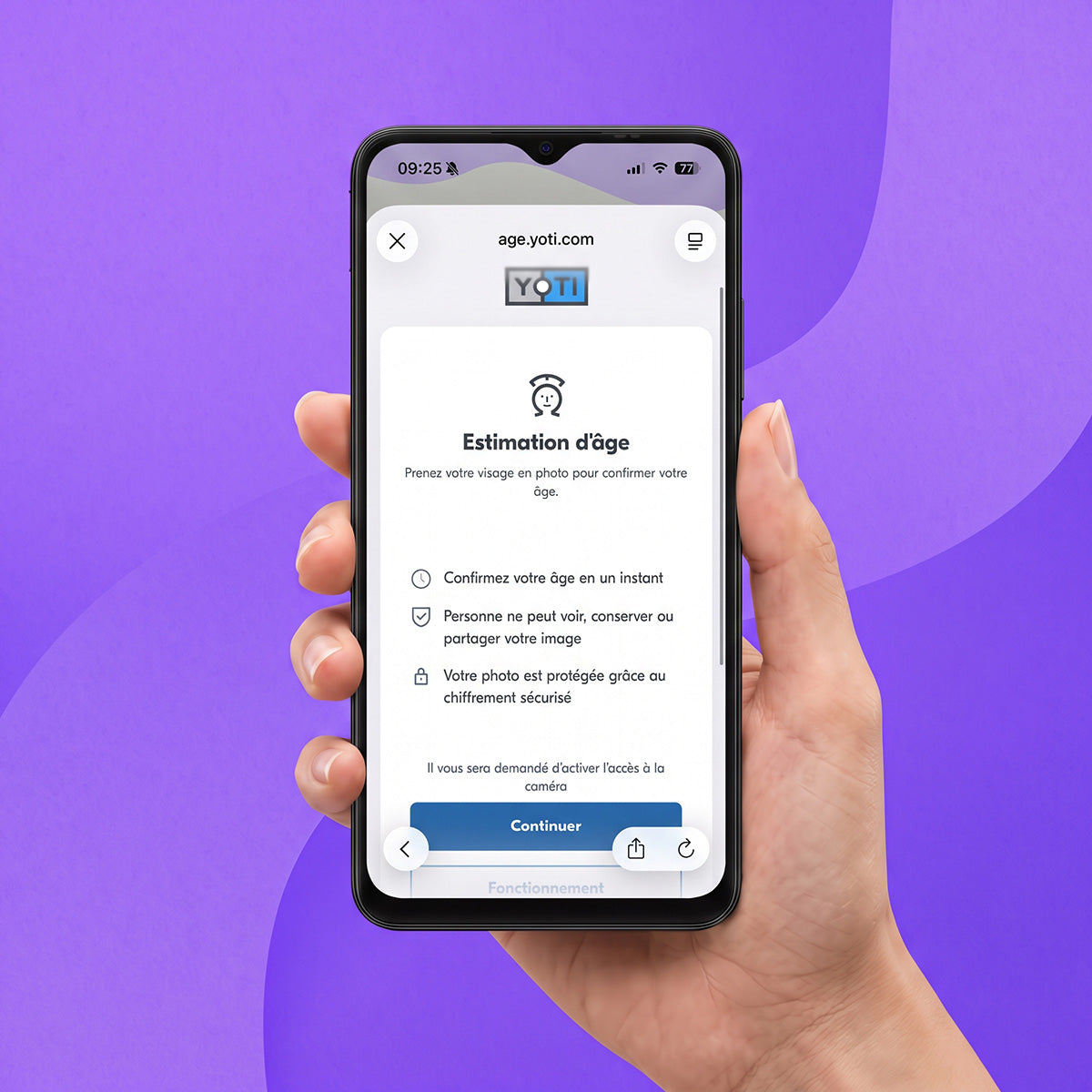
To Upon activation, Yoti, a certified third party, verifies that the parent account belongs to an adult. No one else can create the account for you.
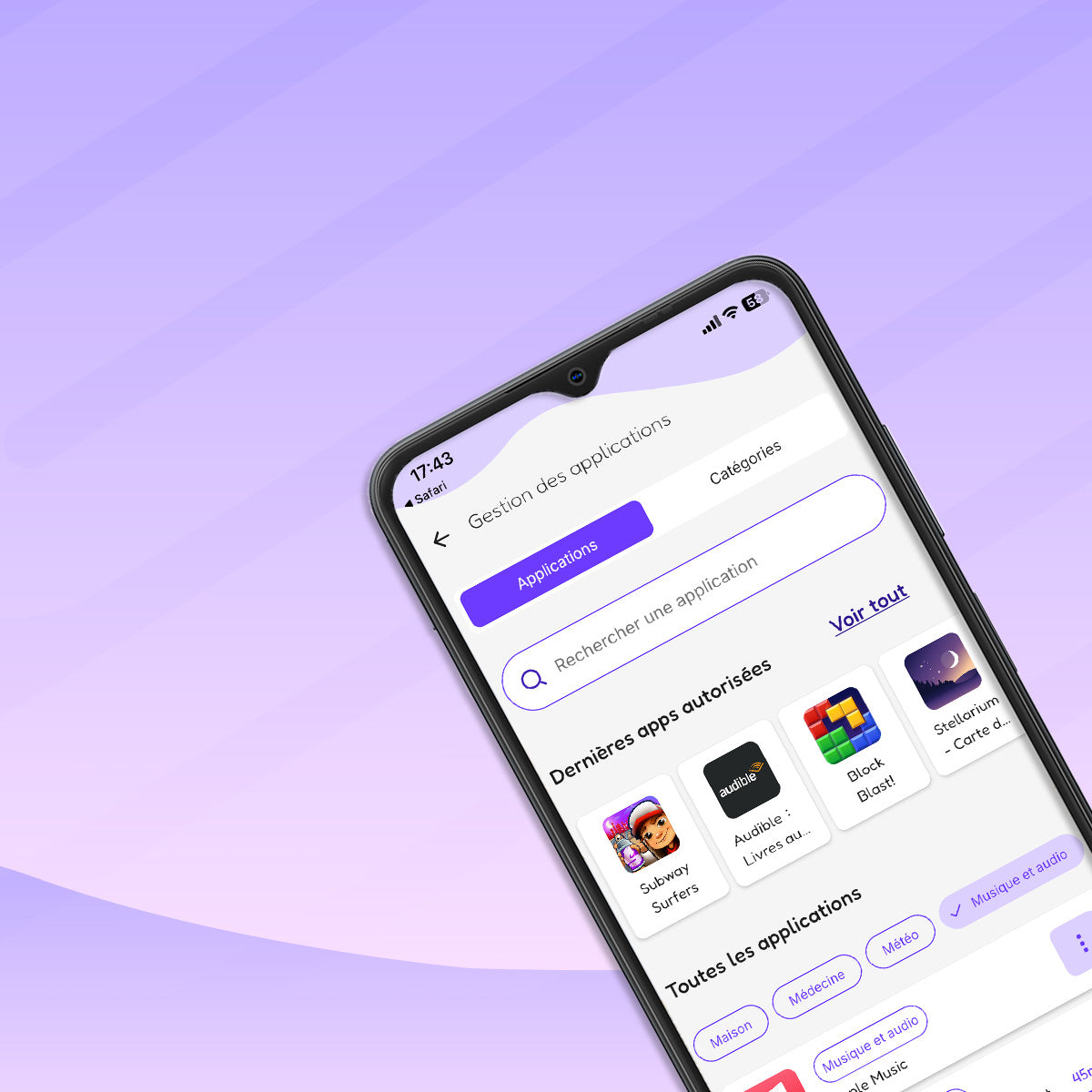
Your young person installs their apps from a catalog that evolves with them:
Your child can also share an app discovered on the Play Store.
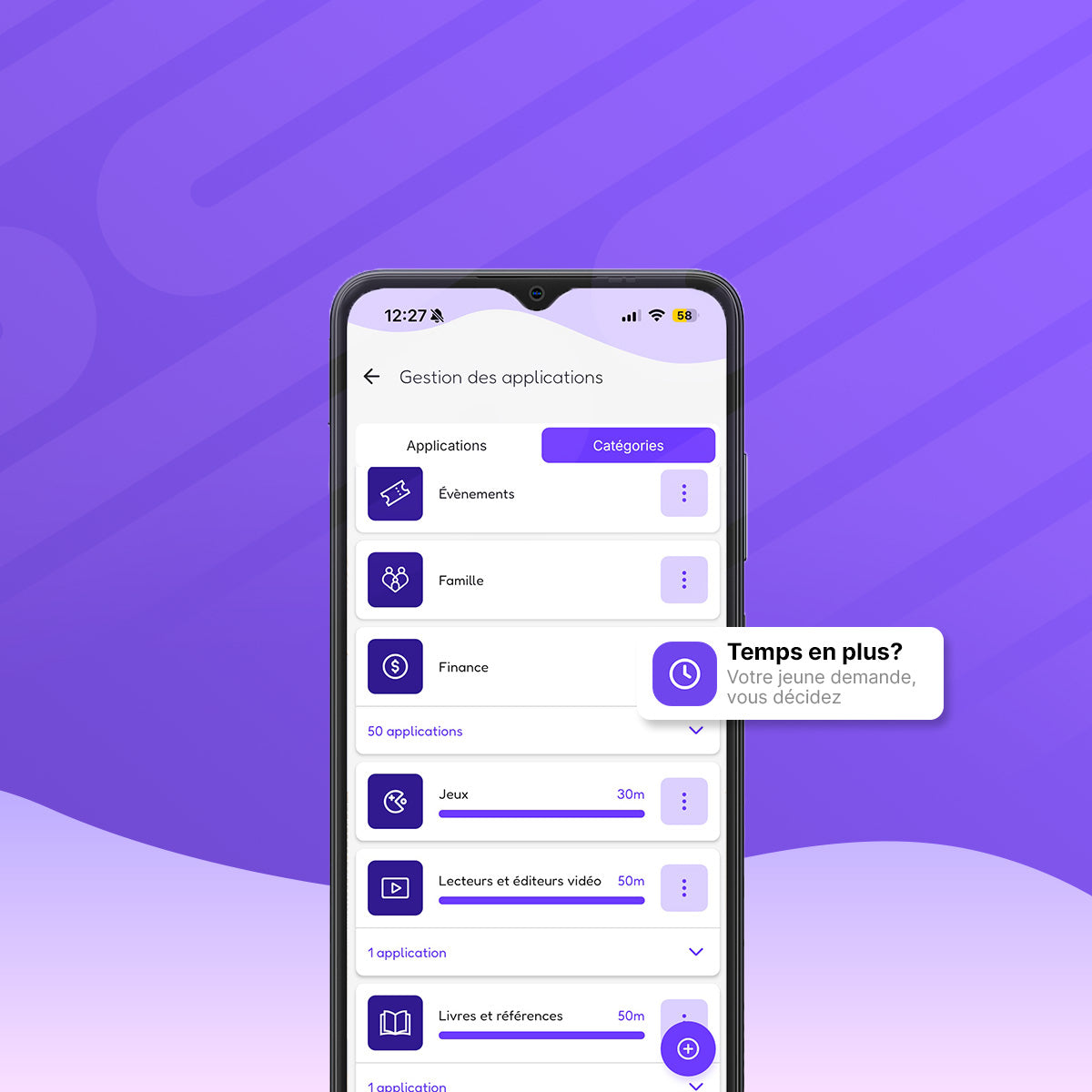
Set a duration for a specific app, or for an entire category of apps: games, music, etc. Your young person sees their counters in real time.
Extra time : your young person can ask you for additional time, you respond from your phone. It cannot make several simultaneous requests for the same app without you responding.
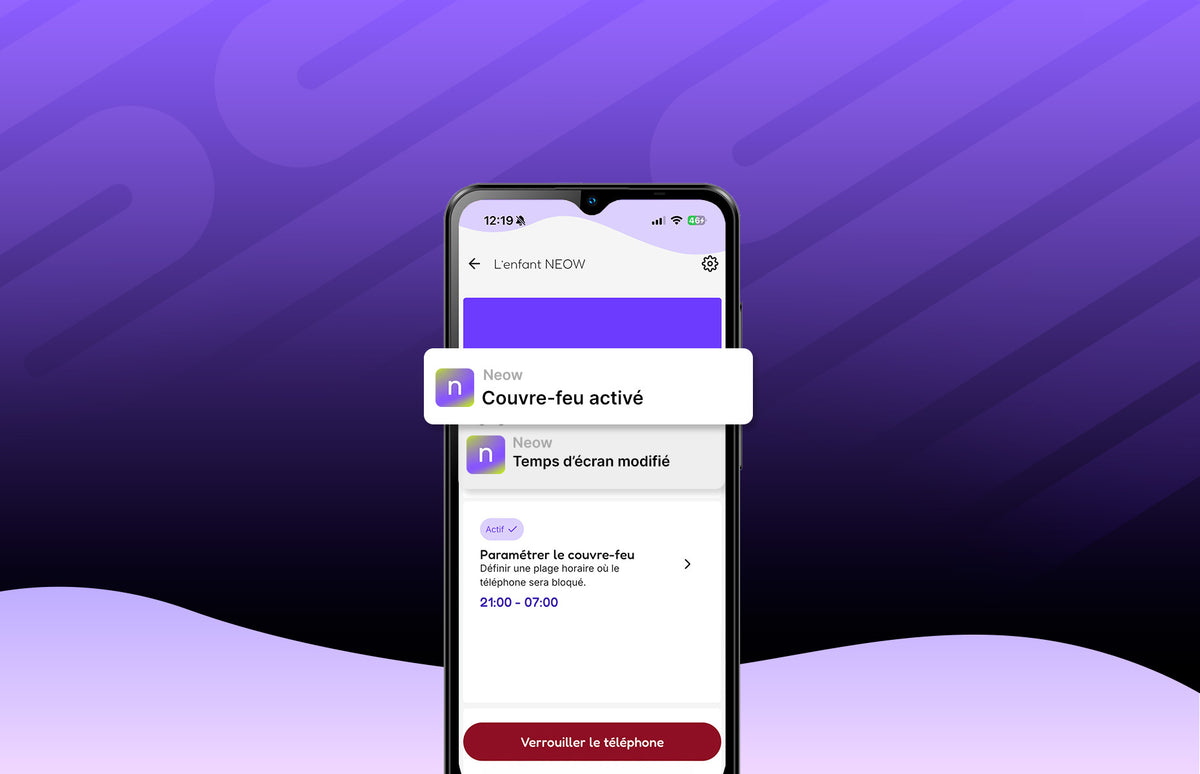
Define a screen-free time slot, identical every day. Calls and emergencies remain available.
Immediate Pause : Pause the phone remotely. Calls and emergencies remain available.
Security
Protections designed from the start, for your peace of mind and the confidence of your young person.
You locate the phone whenever you want. No continuous tracking, no history.
If the phone does not sync, you receive an alert.
You choose from several filters the content accessible on the internet (if you allow browsers)
Éos is part of the phone: it cannot be uninstalled or circumvented.
When you feel that your child is ready, you remove all parental settings : the phone becomes a classic Android smartphone. And you can go back at any time.
Compatibility
Éos does not modify the settings according to age: it is you who changes the environment of your young, at your own pace.
Already equipped?
The update will be offered to you gradually between now and the end of December. It is never imposed: you choose the time that suits you.
She is perhaps not yet in the List Neow. It can ask you for it from the Play Store: you receive it in your app and decide whether to add it or not.
After reading the warning displayed by Neow, you can still add it to the list of apps available.
Only one request can be in progress per app: you must wait for your response before sending another.
Check that the phone Neow is connected to a Google account: in strict mode, the parent app is not used.
Our smartphones
Neow Safe and Safe+, with integrated Eos. A real smartphone, native security and zero mental load.
6.56-inch screen · 64 GB
[number] colors available
128 GB
[number] colors available
